UX WRITING | CONTENT DESIGN
Scope: Rewrite UX copy
Tools: Figma, Google Docs
Overview
Okta allows admins to embed Okta sign-in pages into their company’s web portal using iFrame. This allows admins to create a seamless experience for their users.
However, iFrame embedding is not recommended due to security risks. Okta introduced a safer way to embed a webpage, using Trusted Origins.
The admin can add an origin (the page URL) and choose the iFrame embedding option to achieve the same results but more securely. This requires turning off another iFrame embedding in the Customizations section of the Admin Console.
Admins can still save their Trusted Origin settings even when the Customizations setting is enabled. However, the Trusted Origin won’t go live in this case. The Trusted Origin can only be used for testing and monitoring until the Customizations setting is turned off.
There are two use cases here:
- The admin wants to make the Trusted Origin live immediately.
- The admin wants to test the Trusted Origin before making it live.
As part of this feature, we also wanted to discourage admins from using the iFrame setting in Customizations because it was less secure.
Challenge
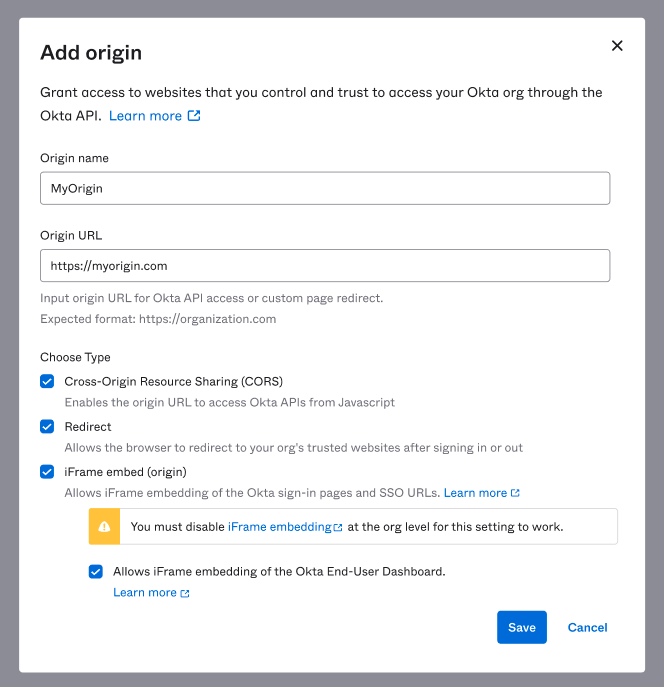
Trusted Origin: The UI already displayed a notification to turn the Customization setting off. However, it didn’t explain the rationale behind it. It also didn’t explain the two options (use cases) available to them.
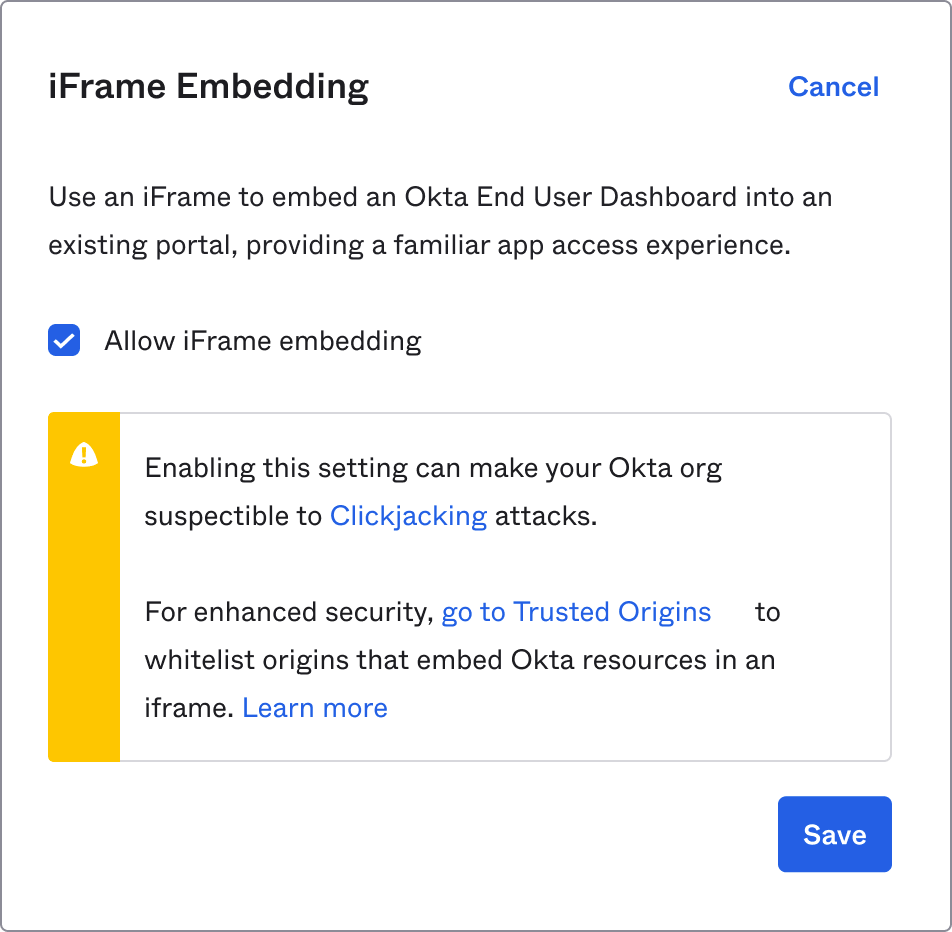
Customizations: The message here included non-inclusive language. It wasn’t clear and was poorly formatted.
Solution
Trusted Origin: I rephrased the message to explain the two options. This saved the time and efforts admins would’ve spent in finding this information in the documentation. I also clarified the location of the Customization setting, since it wasn’t clear in the original message.
Before:
You must disable [iFrame embedding] at the org level for this setting to work.
After:
This origin is currently in the report-only header and can be used for monitoring. To make this change live, you must disable [iFrame embedding] in Customizations.
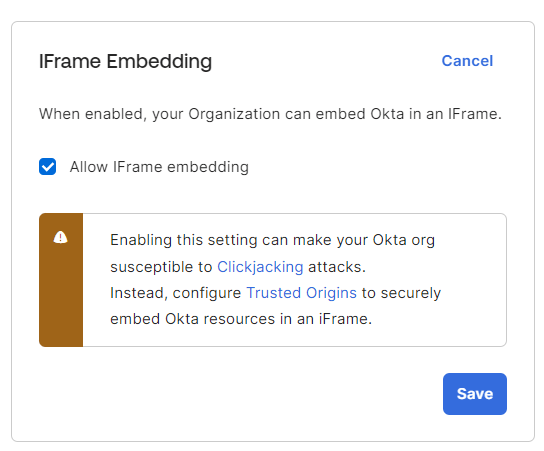
Customizations: I rephrased the message to stir the admins toward the recommended setting (iFrame Embedding using Trusted Origins) and ensured that the language was free of any non-inclusive terms.
Before:
Enabling this setting can make your Okta org susceptible to [Clickjacking] attacks. For enhanced security, [go to Trusted Origins ] to whitelist origins that embed Okta resources in an iframe. [Learn more]
After:
Enabling this setting can make your Okta org susceptible to [Clickjacking] attacks. Instead, configure [Trusted Origins] to securely embed Okta resources in an iFrame.
Copy
Trusted Origins: Before
Trusted Origins: After

Customizations: Before
Customizations: After
 Nikita Apraj